Guides
Step-by-step help for captions, Follow-ups and Apple Watch. For pairing hearing aids and joining a broadcast, start with the help videos and the support page.
- Start captions from your Apple Watch
- Reader and Lock Screen captions
- Captions all day
- Keep a moment and follow up
- Pages for people
- Hand over someone's text messages automatically
- Keep a conversation when your name comes up
- Find a transmitter's Bluetooth address
- Captions in glasses
- Build or reprogram your own glasses
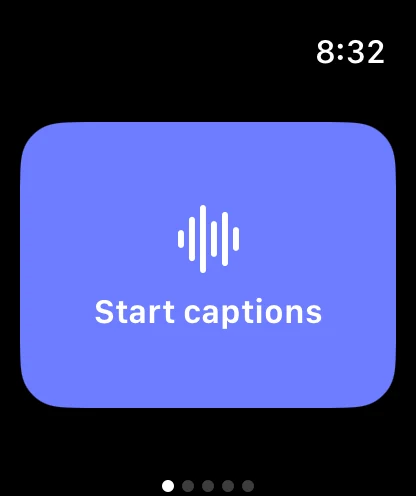
Start captions from your Apple Watch
Needs HearAura 1.4.1 or later on iPhone and Apple Watch, and iOS 26 for listening through the Watch.
- Open HearAura on your Apple Watch. It opens on Start captions. Tap it.
- If HearAura is open on your iPhone, the iPhone listens, as usual.
- If your iPhone is in a pocket or locked, the Watch listens instead. The first time, the Watch asks to use its microphone. Your iPhone turns the sound into captions and they appear on your wrist.
- Tap Stop on the Watch when you are done.
One tap from the watch face. Touch and hold the watch face, tap Edit, swipe to Complications, tap a slot and choose HearAura. Start Captions opens the app and starts at once. Keep saves the last minute of caption text to Follow-ups.
Why the Watch listens. iOS does not let any app turn on the iPhone's microphone while the app is in the background, so the Watch does the listening and sends the sound to your own iPhone. Nothing is recorded or kept as audio on either device.
If it says it couldn't reach your iPhone: bring the iPhone within Bluetooth range and try again.
Reader and Lock Screen captions
Needs HearAura 1.4 or later.
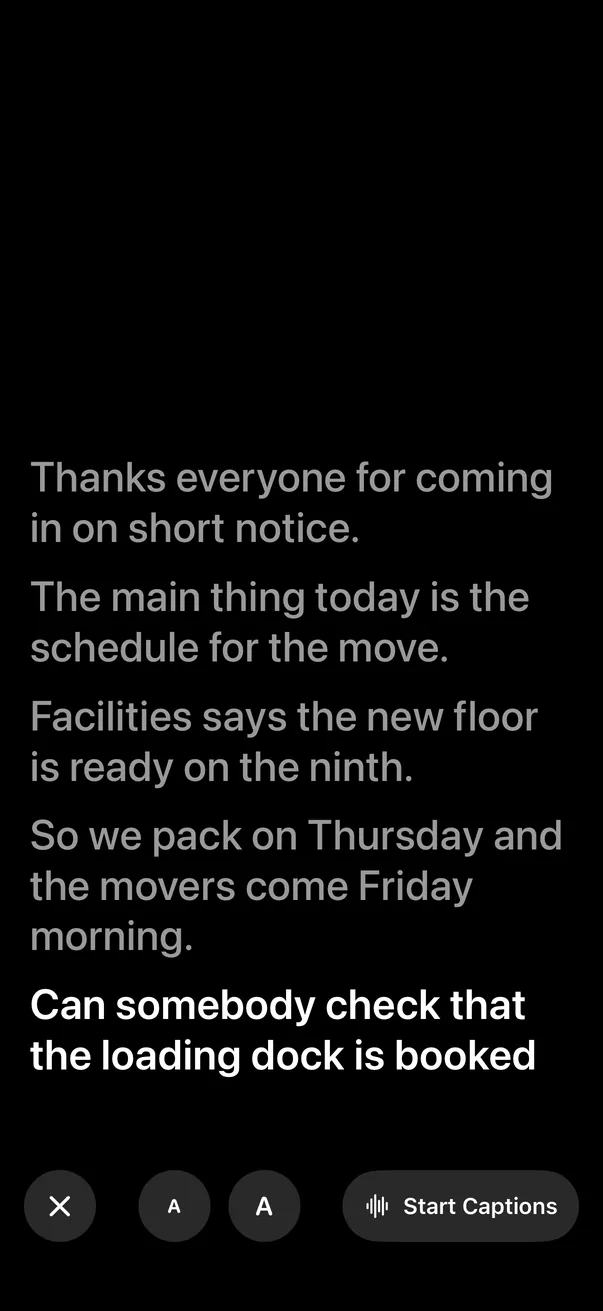
Reader shows only the captions, full screen, light text on black.
- On the Captions tab, tap the arrows button at the top right.
- Tap the screen to show or hide the buttons: close, smaller text, larger text, and Start or Stop.
- Scroll up to re-read; it follows the newest line again when new words arrive.
On the Lock Screen, captions show the last few sentences with the newest in bold, plus Keep and Stop buttons, so the iPhone can stay on the table. A dotted underline marks a word the captions were less sure of.
Start without unlocking. Touch and hold the Lock Screen, tap Customize, then Add Widgets, and add HearAura's Start Captions. There is also a Start Captions control for Control Center and the Action button.
Captions all day
Needs HearAura 1.4 or later.
- In HearAura, open Settings (the gear on the Listen tab) and turn on Rest when it's quiet.
- Start captions once.
- After about a minute and a half without speech, captions rest: HearAura stops transcribing and only listens for the sound of a voice. When someone speaks, captions come back by themselves.
The Lock Screen says Resting while it waits. The microphone indicator stays on, because HearAura is still listening for a voice. Tap Stop to end it completely. This uses more battery than leaving captions off.
Keep a moment and follow up
Needs HearAura 1.4 or later. Suggestions need an iPhone with Apple Intelligence.
- While captions are running, tap Keep on the Captions tab, the Lock Screen or your Apple Watch. The last minute of caption text is saved. No audio is ever kept.
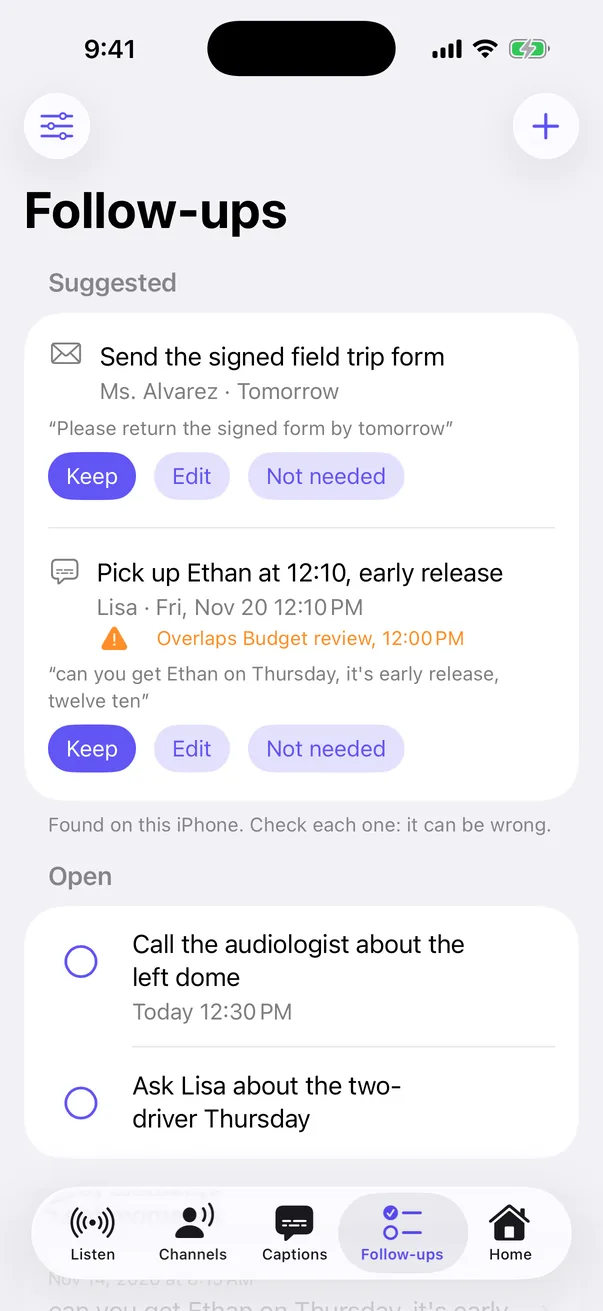
- Open the Follow-ups tab. On iPhones with Apple Intelligence, anything HearAura found appears under Suggested, with the words it was found in.
- Tap Keep to accept a suggestion, Edit to fix it, or Not needed. Nothing is on your list until you accept it.
- Tap an open follow-up to add it to your calendar or Reminders. Tap its circle when it is done.
Calendar overlaps. Tap the sliders button on the Follow-ups tab and turn on Check my calendar. HearAura then warns you when a follow-up lands on top of an event. It covers every calendar on your iPhone, including Google and work calendars you have added in Settings.
Without Apple Intelligence you can still keep moments, add follow-ups yourself, and get calendar warnings.
Captions and suggestions are approximate and can be wrong. Check each one.
Pages for people
Needs HearAura 1.4.1 or later.
- On the Follow-ups tab, tap + and choose Add a person. Type their name.
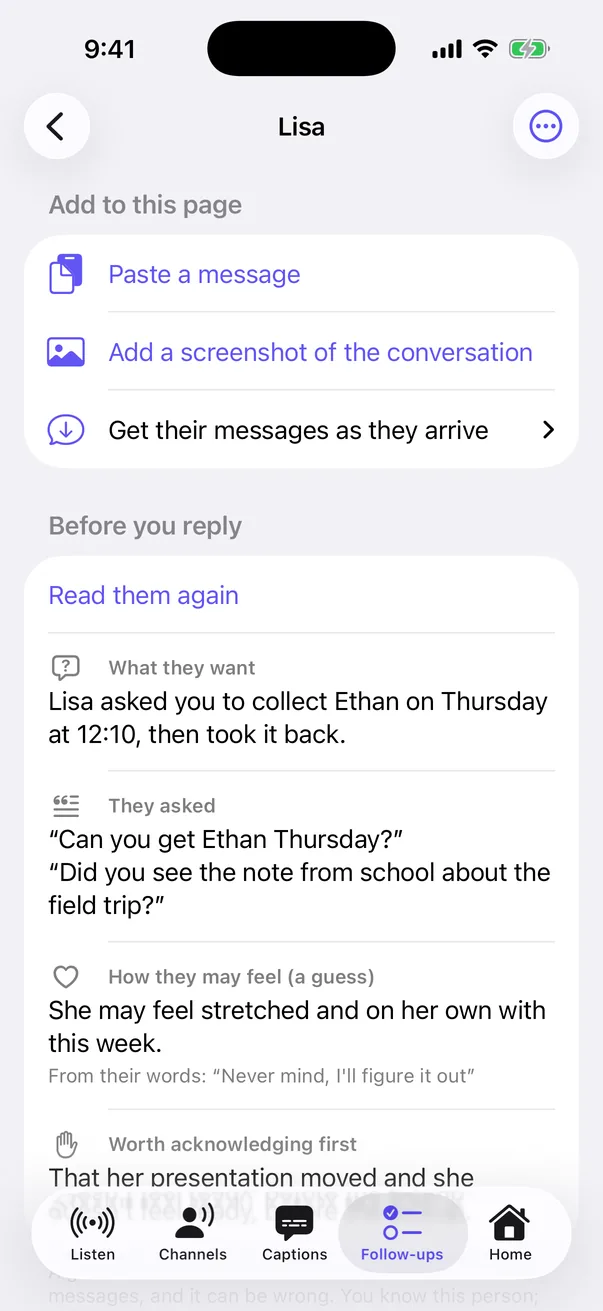
- On their page, tap Paste a message (copy it in Messages first: touch and hold the message, then Copy), or Add a screenshot of the conversation.
- To have their messages arrive by themselves, open Get their messages as they arrive on the same page; it lists the one-time Shortcuts steps and the exact name to use.
- For a screenshot, HearAura reads the text on your iPhone and shows who it thinks wrote each bubble: grey bubbles as theirs, blue or green as yours. Fix any that are wrong, then tap Keep. The picture itself is not kept.
- On iPhones with Apple Intelligence, tap Read the recent messages before you reply. You get what they want, the questions you have not answered, how they may feel with the words that was read from, and what to acknowledge first.
HearAura never writes your reply, and the read is a guess: you know this person and your iPhone does not.
What iOS allows. No app can read your Messages. HearAura only sees what you paste, a screenshot you choose, or a message your own Shortcuts automation hands it (next guide). Everything is kept as text on your iPhone; use the menu at the top of a person's page to erase it.
These are another person's words. Tell the people you keep messages from.
Hand over someone's text messages automatically
Needs HearAura 1.4.1 or later.
A Shortcuts automation can pass each message from one person to HearAura as it arrives. You set it up once.
- Open the Shortcuts app. Tap Automation, then the plus.
- Choose Message. Under Sender, pick the person. Choose Run Immediately.
- Add the HearAura action Check a Message for Follow-ups.
- Set Message to the automation's message (Shortcut Input). In From, type the person's name exactly as their page is named, or choose the message's Sender.
- In HearAura, on the Follow-ups tab, tap the sliders button and turn on Keep messages from people I name.
From then on their messages land on their page, and anything with a time or something to do appears under Suggested. Only messages you receive are handed over; for your own replies, add a screenshot of the conversation.
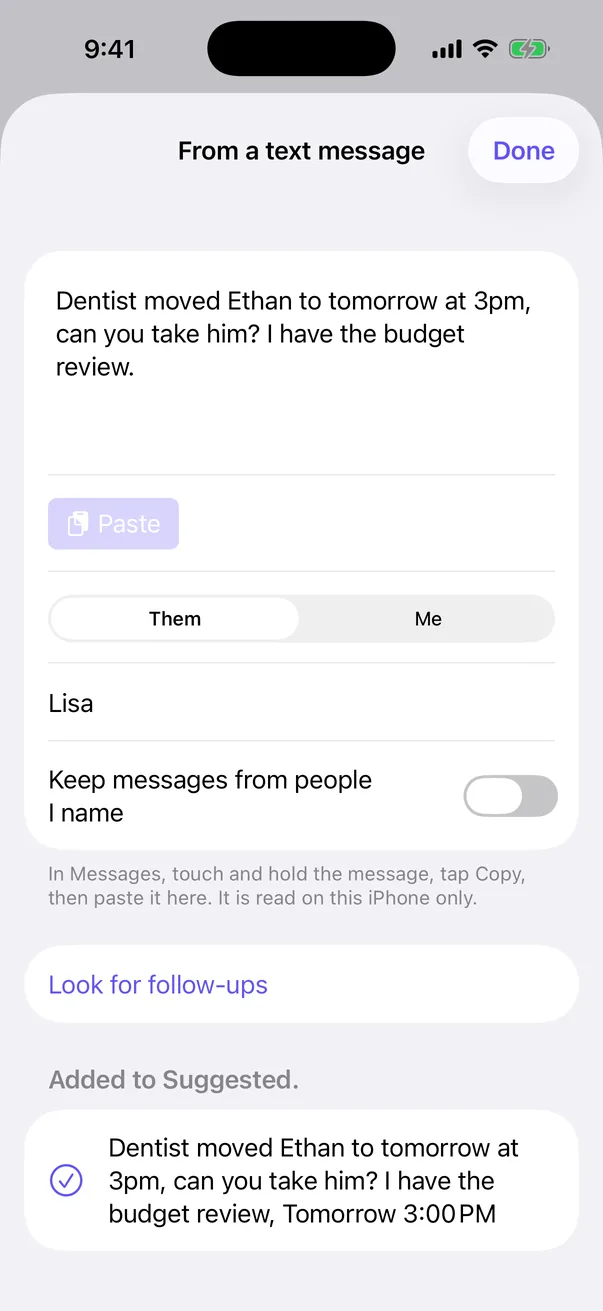
Keep a conversation when your name comes up
Needs HearAura 1.4.1 or later, with captions running.
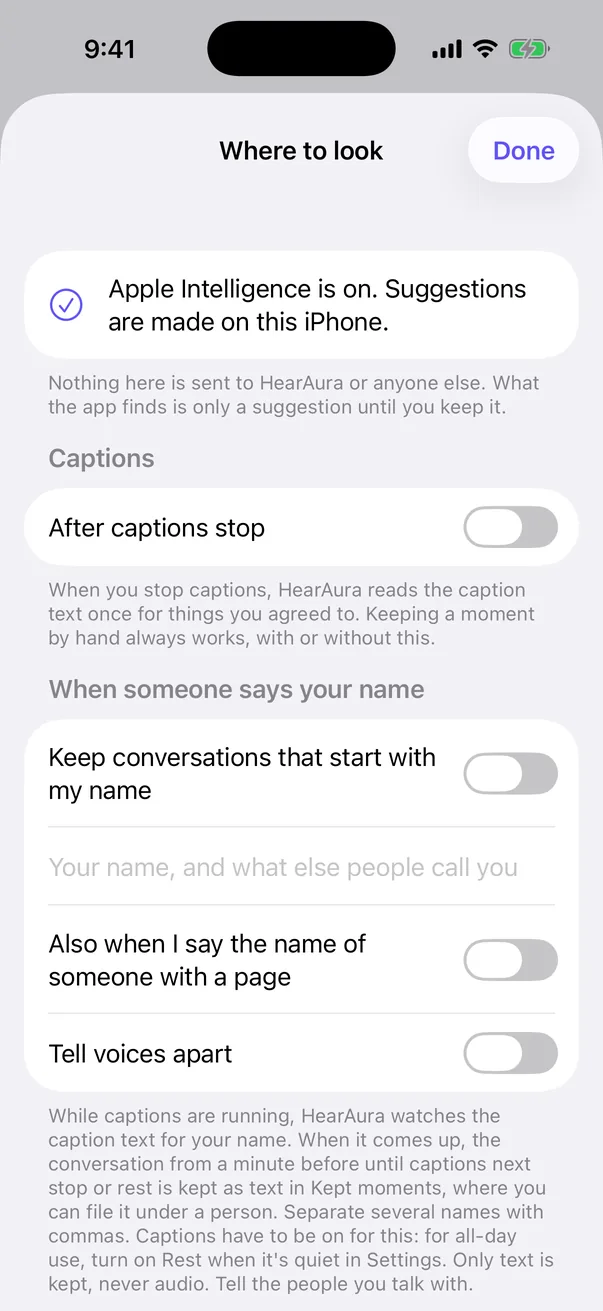
- On the Captions tab, tap When someone says your name (it is also under the sliders button on the Follow-ups tab).
- Turn on Keep conversations that start with my name and type your name and what else people call you, separated by commas.
- While captions run, HearAura watches the caption text for those names. When one comes up, the conversation from a minute before until captions next stop or rest is kept as text in Kept moments. The Captions tab tells you, with a Don't keep button.
- Optional: Also when I say the name of someone with a page files the conversation on that person's page.
- Optional: Tell voices apart marks who spoke as Speaker 1 and Speaker 2, which you can rename. It downloads a voice model once and only tells the voices in one conversation apart; it does not know who anyone is.
Only text is kept, never audio. Tell the people you talk with.
Find a transmitter's Bluetooth address
Sometimes HearAura asks for a transmitter's address when you join. An iPhone does not let any app read that address, but your hearing aids need it to tune in. You enter it once and HearAura remembers it for that transmitter.
It looks like 74:F8:DB:D7:90:2C: twelve characters, digits and the letters A to F.
- With an Android phone or tablet: install the free app nRF Connect for Mobile, turn the transmitter on in its Auracast mode, and tap Scan. Find the entry with the name HearAura shows; the address is under the name. If several appear, hold the Android device next to the transmitter and pick the strongest signal.
- With a Windows PC: Microsoft's free Bluetooth LE Explorer lists nearby devices with their addresses.
- On the transmitter: check the label, box or manual for "MAC" or "BD ADDR".
- From the maker's app: if your hearing aid maker's own app can join the transmitter once, HearAura learns the address from your hearing aids and stops asking.
An iPhone, iPad or Mac cannot show the address. In HearAura, type it with or without the colons, leave Address type on Public and join. If your hearing aids cannot find the transmitter, the dialog comes back with Random selected; try once more.
Still stuck? Email support@hearaura.app with the transmitter's make and model.
Captions in glasses
Needs a HearAura version after 1.4.1. Not yet tested on real glasses: tell us how it goes.
HearAura can put captions in front of your eyes in two ways. Which one applies depends on the glasses.
Glasses on a cable (for example Xreal, Rokid Max, Viture, RayNeo Air). These are a screen you wear.
- Plug the glasses into your iPhone's USB-C port.
- Start captions. The glasses show only the captions, light on black. Black is see-through in these glasses, so the words float over the room. The buttons stay on your iPhone.
- To change the text size or where the words sit, open Settings in HearAura and tap Captions in glasses.
- For your pocket: open Reader on the iPhone and tap the lock. The screen ignores touches until you hold Hold to unlock for a second.
The iPhone has to stay unlocked while the glasses are in use. Not every iPhone sends video over USB-C: iPhone 15 and later do, except iPhone Air and iPhone 16e. A TV or an AirPlay screen works the same way, which is handy for a room.
Wireless glasses that show notifications. In Settings, tap Captions in glasses and turn on Send captions as notifications. Each finished caption sentence is posted as a silent notification, which glasses that mirror iPhone notifications can show. Allow HearAura's notifications in your glasses' own app. It is a sentence at a time and a second or two late, and the same notifications appear on your Lock Screen and Apple Watch.
| Glasses | With HearAura |
|---|---|
| Xreal, Rokid Max, Viture, RayNeo Air | Plug in. Captions only, on the cable. |
| Even Realities G1 and G2 | Try notifications. Direct support depends on Even. |
| Rokid Glasses, INMO, others with a wireless display | Try notifications, if their app passes them on. |
| Meta Ray-Ban Display | Not yet. Meta decides which apps can use the display. |
| Ray-Ban Meta, Oakley Meta, Echo Frames, Google's audio glasses | No display. Captions stay on your iPhone or Apple Watch. |
None of these have been tested with HearAura yet. If you try a pair, email support@hearaura.app and tell us what happened.
Build or reprogram your own glasses
For people comfortable with a soldering iron or firmware. Not yet tested on hardware.
New to electronics? Start with Caption Glasses 101, an interactive book: nine short lessons, drawings that build up one wire at a time, a check at the end of each, and no soldering until the last.
HearAura has an open Bluetooth link for glasses you build or reprogram yourself. Any Bluetooth LE device that offers the HearAura glasses service gets each caption as it is spoken. In the app: Settings, Captions in glasses, Look for homemade glasses.
Glasses that also report which way your head points and where a voice comes from get more back: HearAura numbers the speakers by where they are, without identifying anyone, and tells the glasses which speaker each caption belongs to and which side they are on. With display glasses plugged into the iPhone, the caption is drawn on that side in that speaker's colour.
- The project on GitHub: the board's program, the link format, the tests, and the recipes. It builds without errors and has not yet run on a board.
- The link format: one service, a four-byte header and UTF-8 text.
- Add your own recipe: built it a different way? Share it and the guide offers it to the next person.
If you build something against it, we would like to hear how it went.
Stuck? Write to a person.
Email support@hearaura.app. A person reads every message, usually replies within two business days, and accessibility problems go first. Tell us your iPhone model and your hearing aid or earbud brand and model; it saves a round trip.